
his task is much easier than some might think. However, you have to resize the LVM and then the partition.
Most Linux distros, such as Ubuntu and Debian, prefer LVM. LVM is Logical Volume Manager that provides a method of allocating and managing space on mass-storage devices that is more advanced and flexible than the traditional method of partitioning storage volumes.
- Physical volumes: correspond to disks
- Volume groups: are collections of physical volumes
- Logical volumes: correspond to partitions
You can generally resize the partition when it is mounted, so there is no need to risk downtime.
1) First see if Linux shows the additional disk space "cfdisk".
If you do not see free space you will need to rescan the system.
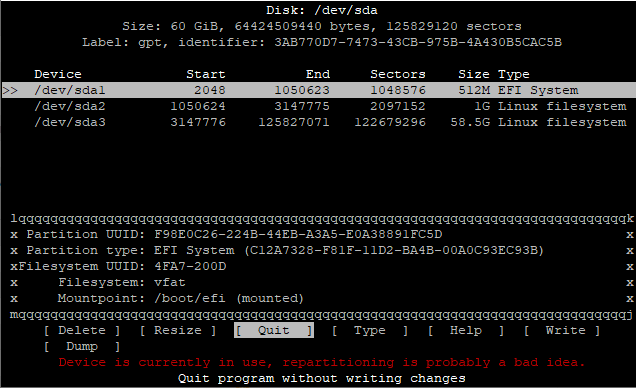
2) Scan to make sure when you increase the disk size, the system has detected it
3) Execute cfdisk
You will see that you have free space. Go to the partition you wish to increase the disk size. Select resize, enter the amount of free space to use then write.
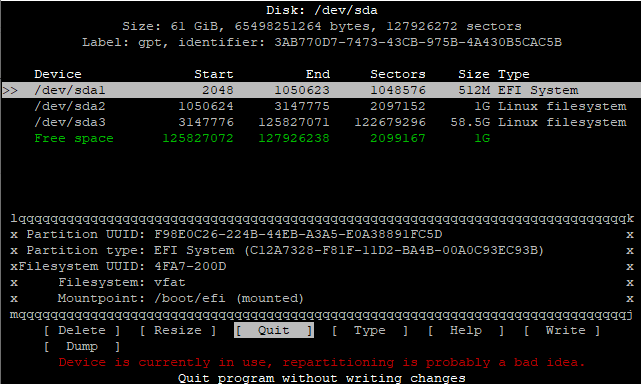
4) Write the new partition table
You must make sure select write and press enter. If you do not you will quit without making a change.
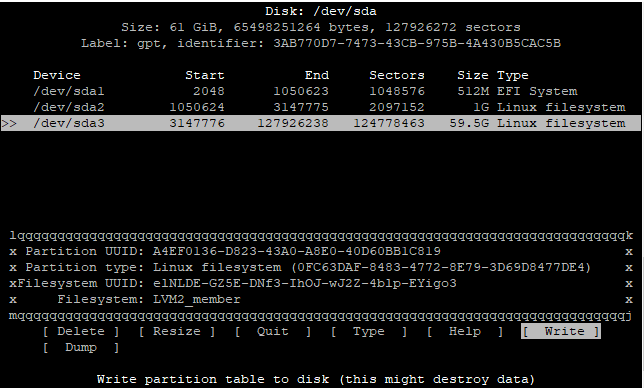
5) Extend the physical partition
It should show a number bigger than 0 on Free PE.
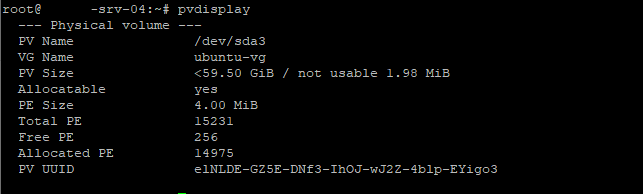

6) Check the volume now shows the free space
7) Find the LV path you want to extend
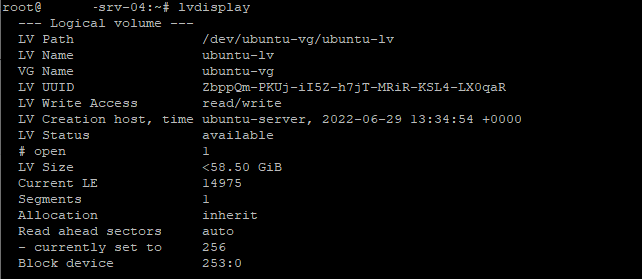
8) Extend the LVM with the LV path previously found

9) Get the file system name
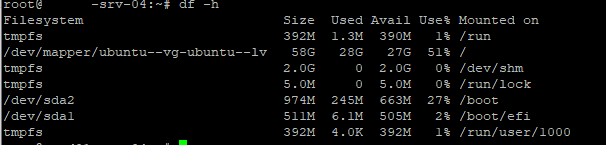
10) Resize the filesystem
In our case, the main filesystem is /dev/mapper/ubuntu--vg-ubuntu--lv so we need to run the command
